Wednesday, August 4, 2010

Thing 62. The Creative Librarian

Photos & videos are a great way to engage library users and the community in what happens at the library. You can document events like the summer reading program finale. Post photos or videos of  author talks. How about a "sneak peek" of what goes on behind that "Staff Only" door? A photo booth with fun backdrops might be a hit at a teen night at the library. A family portrait day (special guest or not) is fun.

It has never been easier to be creative with photos and video. Digital cameras make taking good quality pictures simple and inexpensive. No more taking the film to FotoMat & waiting a week only to find out you have a lot of blurry pics to store in that shoebox with the others. Digital cameras let us instantly evaluate the pictures, retake as necessary, upload the pictures online or to our computer, print them out, or store them online. In a flash, you're ready to show the world your events. Flip & similar pocket-size video cameras make documenting those action events at the library almost as easy.

Once you have a collection of digital images, there are many Web 2.0 tools that will help you manage and display them. Online tools let even the least artistic among us edit and display our photos and videos for the world to see. Think how you can use some of these tools to spark up your website or other resources. People like to see what's been going on.

iPhoto & Picasa can help you organize, label and rate images, view and edit metadata, and navigate using the folder structure of your computer. Web-based services like Picasa Web Album & Flickr offer easy ways to share your photos with others by storing them in the cloud.

Once you have your originals saved in a safe spot on your computer or online, you can play around with the photos and then upload the new versions while keeping the original for another project.

Picnik is a great (free & premium versions) tool that lets you improve the quality of your photo and add special effects like color changes, blur effects (we want those now!), frames, captions, and more. For videos, Macs come ready to edit with iMovie, while Windows machines offer Windows Movie Maker. Take advantage of this benefit to put together a few video clips or a full-length movie.

BigHugeLab and other sites like Dumpr and PhotoFunia let you put your photos into posters, puzzles, games, and more. Everyone wants to be on the cover of Rock Star!

Now that you have a set of cool photos or video--nicely edited to eliminate red eye, cropped to focus on the subject, and tarted up with text, frames, and effects, how do you share them? Save the new photos, print them out, and post them in the library. Or, for a more "modern" way to share, there are cool tools that help you easily create slideshows or animations of your photos or video. The tools generate the embed code, too, so you can easily post these to the library website or blog.

PictureTrail lets you upload your photos to create a "Flick"with many options for transitions, glitter, music, and more. Animoto automatically produces unique video pieces from your photos, video clips, and music. Both tools are fast, free and easy. Note that iPhoto and Picasa also offer a slideshows, but without the special effects.

Resources
Here are couple of places to look for help and ideas. The blog Free Technology for Teachers offers this Making Videos on the Web guide that is useful for media specialists and librarians. The ALA TechSource Take Pictures, Tell Stories is a multi-part series on photography for libraries.

The Fine Print
Librarians have been looking for legal/ethical guidance about taking and using photos in the library. Here are some sources to review, but be sure to check with the powers that be in your organization to avoid issues with posting photos or videos. Whatever the decision on photography, be sure to have a policy.
Libraries are creative places, packed with creative people. How have you used photos or videos to promote the library? What tools did you use?

Ann Walker Smalley, Metronet

Image: 'Kodak Brownie Starlet, 1957 - my first+camera'
http://www.flickr.com/photos/89142790@N00/2345575389

Thing 61. Online Professional Development for Library Staff

As libraries of all types face budget cuts that have an impact on hours, service, and collections, the ability for staff to attend professional development events out of the library may be reduced, too. However, in times of stress and retrenchment, continuing education is more important than ever. CE events can help libraries find new efficiencies, increase the ability of staff to understand and refine their responsibilities, as well as encourage staff continue to learn and grow as library employees. The investment a library makes in professional staff development is a morale booster because it recognizes that we value our employees and their ability to learn and contribute.

Thing 50 described how to keep up with the library world by creating a Personal Learning Network (PLN), managed with a customized homepage like iGoogle or Netvibes. Sending all your RSS & Twitter feeds to one spot is an efficient way to keep up with breaking news and new developments,  Add in podcast subscriptions, webinars, screencasts, & videos and you have a wide range of possibilities for free, never-leave-your-desk (or maybe your car) online learning.

Efficient aggregation of information is one thing, but where can we find the time for CE? Podcasts can be downloaded to a personal device--smart phone or mp3 player, for instance--and listened to during your commute, your daily walk, at the gym, doing dishes--just about anywhere. Webinars are often archived which makes it easy to watch/listen on your own schedule. Since the Internet is 24/7, there is no issue with others' schedule to watch YouTube or read blogs. Instead of Glee reruns, how about an informative YouTube video on Google search?

CE on library time may take some creativity, but it is doable with cooperation from administration and co-workers. How about informal brown bag lunches focused on a specific webinar or podcast. Watch/listen when you can, then have a discussion. Working out schedules so everyone gets a chance to do something CE for an hour or so a month means everyone benefits when we share what we learned. If you have creative ways you have integrated CE into your library, share them in the comments.

Here are some of our favorite ways to keep up:

Podcasts
Podcasts are like talk radio, but you get to choose the topic and commentator, rather than being stuck with what's on the radio! You can stream the content or . "Podcast" implies that the feed has a subscription via a feed. Most of these are updated regularly:
Find more podcasts here:
Webinars
A webinar is a live meeting that takes place over the web. The meeting can be a presentation, discussion, demonstration or training session. Most webinars are archived, so if you can't watch it live, you can watch it when your schedule allows.

We hope you are taking advantage the the great webinars that Minitex offers on all thing library. Learn about ELM databases, readers advisory, and more. Past Minitex are archived here. Other sources of webinars:
  • InfoPeople is continuing library education sponsored by the California State Library 
  • TechSoup for libraries has live & archived sessions on many topics 
  • WebJunction Minnesota has many free courses, including those from U of North Texas Le@D that are approved for Minnesota Certification. Courses are free if you affiliate with WJMN (also free)
  • WebJunction Central also offers free webinars
Screencasts
A screencast is a digital video recording that captures actions taking place on a computer desktop. Screencasts, which often contain voice-over narration, are useful for demonstrating how to use specific operating systems, software applications or website features. These are quick, easy ways to learn something new. Minitex has created a series of screencasts on several topics from Greasemonkey to RSS feeds. You can browse other screencasts here.

Making a screencast either for public use or staff use is CE itself. The screencast maker will not only share what she has learned, she will learn a few things in the process of making the screencast. Here are some free resources for creating screencasts:
Video
Where to begin with the availability of video on the Internet? YouTube has millions of videos of various utility. LibraryTube and TeacherTube try to focus on specific audiences. Vimeo and others have a wider range of videos. Here are some places to start:
It pays to invest in professional development. Without the investment, when the tempest has passed--and we certainly hope that happens sooner rather than later--staff is in the same place as before, facing new challenges, but "behind the times" in their ability to meet the challenges.

Ann Walker Smalley, Metronet
Image: 'Third Generation iPod nano'
http://www.flickr.com/photos/89892960@N00/1348379764

Tuesday, July 6, 2010

Thing 60: Readability and Instapaper

readabilitycrop
Reading on the web can sometimes be challenging. Text blocks are broken up, advertisements are flashing relentlessly, type can be tiny. What is a person to do to make reading on a web page more pleasant? Enter Readability, a nifty utility that removes the clutter around what you're reading. Readability works with most major modern browsers and has been tested on many news sites and blogs. It isn't 100% effective, but works surprisingly well.

You can choose your preferred layout style from among newspaper, novel, ebook, inverse (light on dark) or Athelas (gracefully using white space to advantage). Then choose your font size from a range of five from extra small to extra large. Finally, choose your margin width ranging from extra narrow to extra wide. All of these selection choices can be viewed for effect at the bottom of the page as you choose so you can immediately see their effects and fiddle until you're happy with your selections.

Another option is to convert hyperlinks to footnotes by checking the box at the bottom of your setting choices. What will this do? Articles are often strewn with links — distracting you from the content — and pulling your attention elsewhere. Selecting the "Convert hyperlinks to footnotes" checkbox will pull the links out of your articles and format them as footnotes. Originally linked text will be marked with a simple reference mark so that you know exactly where footnotes correspond to your documents.

Once you have selected your settings, you simply drag the bookmarklet to your browser's bookmark toolbar. When you find an article that you want to read, click on the bookmarklet and presto, you will be able to read it in the format that you have chosen.


Readability - Installation Video for Firefox, Safari & Chrome from Arc90 on Vimeo.

Install Readability and enjoy some quiet reading without distraction thanks to the folks at Arc90 and their laboratory experiment. And if you like their little experiment, don't forget to follow their RSS feed or Twitter http://twitter.com/arc90 while you're there.

Instapaper
instapaperafterregistrationcropNow that you've used Readability to declutter your reading space, you might want to check out another utility that allows you to save web pages or articles for reading later. Instapaper is an app that will bookmark web pages, but rather than saving them to your PC or Mac, Instapaper allows you to access archived articles from any computer you own, even smartphones and Kindle e-book readers. Instapaper works the same way as Readability by creating a button in your browser toolbar. Go to Instapaper  and click on "register for a free account."

Once you've registered, this is what you'll see:
instapaperafterregistrationcrop
Simply drag the "Read Later" bookmarklet to your bookmarks toolbar. (If you have trouble with  installation, check to be sure that Ad Aware or another pop-up blocker isn't blocking you from adding the bookmarklet.) Once installed, all you need do is click the "Read Later" bookmarklet on a page you want to read later. Be sure to check out the "Extras" tab at the top of the page to see what other tools, toys, features and applications are available to get content into and out of Instapaper. 

There are so many ways which you can use Instapaper, it will  make your head spin. Check out the many ways from bookmark to e-mail to ebook readers to mobile devices and RSS feeds that you can save content to read later. There's even an app similar to Readability but using a different technical approach called "Instapaper Text" which you might wish to try. And you can export your list of saved articles, up to the most recent 2,000 articles you've saved.
Play outdoors while the sun shines, but stock up your reading for a rainy summer day using Instapaper.

Happy reading with Readability and Instapaper!

Linda Wadman, Director
North Country Library Cooperative

Thing 59: Reading Rewards

"It's summertime and the living is easy." And, oh, soooo easy for children to forget those reading skills they honed during the school year. Now that summer is upon us, we as parents, librarians, and educators fret about how to prevent "summer learning loss." After spending the school year advancing reading and study skills, how can we get kids to keep reading and engaged in pursuits to retain their literacy? 
 
Libraries offer summer reading programs, but not all children are able to get to the library regularly. What to do? Michelle Skamene, a Montreal, Canada mother who is a web designer by trade, took a pro-active approach and decided to challenge her children to match the amount of time they spent in front of TV and computer screens with an time reading books. Her husband suggested that a web site for tracking time spent reading might be helpful to her challenge. So Reading Rewards and its French language counterpart were born. And, thanks to the social web, we can all use it.

readingrewardscreenshot1
The Reading Rewards website is very easy to use. Kids set up a free,  private account which must be approved by a parent. Families  determine together what rewards should be for a set amount of  reading. Kids log in periodically to record their time spent  reading and earn RR Miles for their reading (RR miles (think similar  to airline miles) that must be validated by a parent. But the site goes far beyond tracking reading time. Users can also see what other kids their age are reading, write their own reviews, and get reading  recommendations by age from a variety of sources, including the  National Education Association, Coretta Scott King Book Awards, recommendations from Parenthood.com, Parents Choice Foundation, Cybils, www.readkiddoread.com, Publisher's Weekly Books of the Year, Newbery Medals and Honors, Caldecott, and American Library Association.

readingrewardsteachertools2
 Reading Rewards can be used on an individual basis, of course, but there is the ability to create groups, too, making it possible for teachers or school librarians to manage a group from a single account.

readingrewardsgrouppageillus4Creating a group couldn't be easier. From the 'Groups' tab, click on 'Create' to set up a new group. Give your group a specific name that your kids will be able to find. Put in the start and end dates. Click on 'Create.' You will then be able to add the details for your group and put in a description and rules, if any. If you have a reading target (in minutes), you can enter it as well. Click on 'Apply changes.' You can also set up a default reward for the kids in the group (optional). When you are ready, click 'Publish'.

Once your group is published, just let your kids know how to find it. Tell them to register on Reading Rewards, and find your group in  the 'Groups' tab. Once they've found it, all they need do is click on 'Join' to become a member and start tracking their reading.

readingrewardsscreenshotgroupcloseup3 Rewards can be set up as a group or by child since some kids need more encouragement than others. You can click on 'Change reward' next to each child's name and modify their reading targets. By clicking on the smiley face next to each child's name in your group, you can send little messages to encourage them. These message appear in their news feed, on their public page.

If you want to have a list of 'Books I Recommend' appear on your group's page, simply click on the 'Add book' button and find the books on their Amazon-driven website. More about this can be found in the slide show. You can learn more and keep up with Reading Rewards on Facebook, too.

Think about how you and those you know might use Reading Rewards to keep those kids reading skills in tip top shape over the long hot summer or anytime for that matter.

Linda J. Wadman, Director
North Country Library Cooperative
 

Thing 55 Update: Bing

A recent post on Resource Shelf offers an update on new features in Bing. Here are a few the article mentions:
  • Updated iPhone app
  • More entertainment information, including song lyrics and full-length song streaming (one time, then 30 second previews)
  • More automobile data and financial data
  • Flight pricing
There is much more in the article--definitely worth the time to read and explore. You can read Bing Bang Boom! Bing Announces New and Enhanced Features and Tools on the Resource Shelf blog, another source worth subscribing to in your RSS feed reader.

Tuesday, June 1, 2010

Thing 58. Chat Reference: AskMN

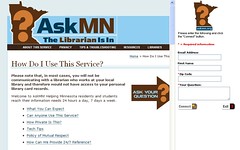
Sometimes a Google search or a ChaCha inquiry simply does not provide the in-depth, quality information that you need. Or maybe you just don’t know how to formulate an effective search strategy and could use a little professional help. And then, sometimes, it is Sunday evening, the library is closed, the assignment is due…. AskMN is there to help. Anyone with a reference question or doing research, who is comfortable with instant messaging and chat, will love the 24/7 services of AskMN. And if you are not familiar with using chat, this is an easy introduction.

AskMN is an online, interactive chat service that allows you to chat with a librarian in real time. The librarian is available to answer your questions and to direct you to various websites. This information and research help is available to Minnesota residents and students 24 hours a day, 7 days a week. When Minnesota librarians are not available, there are librarians in other parts of the worldwide network to come to your aid.

The process is very quick and easy. You provide your email address, first name, zip code and your question. When you “Connect” a chat box opens and you are able to chat directly with a librarian. Further chat, co-browsing, referral to sites -- it is all right there on your screen. Sessions generally last from 5-20 minutes. The librarian will be able to refer you to print and local resources and to Internet sites, as well as subject specialists who may not be available during the live session.
When all is done, you will be sent a transcript of your session so you can easily return to sites or resources that came up during the session. It is pretty cool -- and very useful.

AskMN also welcomes classes. Teachers and school librarians can use a special form to alert AskMN when you will be visiting, your topic/assignment, and how to conduct a class visit. AskMN staff will be prepared for the demand and will make resources available on your students’ subject matter so that all students collect similar information. This is very cool.

AskMN is brought to us by Minitex and participating Minnesota libraries (currently 6 public libraries and 7 academic libraries). Try it out  -- you’ll find it is an amazing service.

By Ruth Solie, Northern Lights Library Network


Thing 57. ChaCha: Mobile Answer Service

Almost all of us have cell phones and we all have questions -- important questions, trivial questions, situational questions, directional questions, bar bets, and questions that result from idle speculation. Often we need information quickly, and while we’re on the go. For a quick and easy way to get answers to these questions, ask ChaCha!

ChaCha is like having a smart friend you can call or text for answers on your cell phone anytime for free! ChaCha works with virtually every provider and allows people with any mobile phone device - from basic flip phones to advanced smart phones - to ask any question in conversational English and receive an accurate answer as a text message in just a few minutes.

What’s your question?
 Simply text your question to 242242 (spells ‘ChaCha’) or call 1-800-2ChaCha (800-224-2242) from your mobile phone to ask any question.

You will get an immediate response from ChaCha that your question is being processed -- and there will be an ad (which is what makes ChaCha free to you). Within a few minutes -- but often less than 30 seconds -- you will receive an answer to your question as a text message.

Behind ChaCha answers are Human Guides (over 50,000 of them) who actually respond to your query. And behind those Human Guides are librarians when questions get really tough. Questions/answers are retained in a ChaCha database which you can access via their website.  ChaCha reaches over 15 million unique users per month who are primarily teens and young adults, but many of us older folks rely on it as well.

Try it! It is much easier to use ChaCha than to read about it, so simply call 800-224-2242 or send a text to 242242 with your questions from your mobile phone and take ChaCha for a spin!

If you are interested, there is more you can do at the website: you can become a Human Guide (for pay), you can follow @chacha on Twitter, or find them on Facebook, explore their Q/A database, or look at their business model, but the best part of ChaCha is the simplicity, the immediacy, and the convenience of having questions answered on the go, for free!
 
by Ruth Solie, Northern Lights Library Network