Tuesday, November 2, 2010

Thing 68. Social Mention

So, you--or your library--are busy tweeting comments and announcements, keeping up your Facebook page, putting cool videos on YouTube, blogging, Digg-ing--all manner of getting the word out on social media. Ever wonder what people are saying about you on those sites? Social Mention and similar tools help you find those tweets and posts that mention you or your library--or other topics you may be interested in following.

Social Mention is, as described on its About page, "a social media search and analysis platform that aggregates user generated content from across the universe into a single stream of information." Think of it as a search engine for social media, searching such sites as Facebook, Twitter, YouTube, and the like.
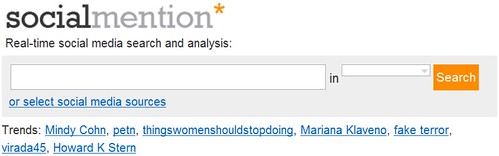
While the site upon first glance seems very simple, there's quite a lot going on here. First, at the very top of the screen is the ability to do a real-time search from social media sites.


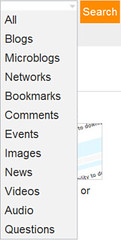
The default search is all types of social media sites. To narrow your search, use the pulldown menu just to the right of the search box. Searches could be narrowed to such things as microblogs, comments, and networks.


Another option for searching is to use Trends. The "hottest" trends can be found located directly underneath the search box. To find additional trends, use the Trends link at the bottom of the page.

Social Mention also offers alerts similiar to Google Alerts. Social Mention Alerts are email updates of social media results based on your topic of choice on a daily basis.

Social Mention offers a few widgets that can be placed on your own website from the Tools page. This page can either be accessed from the Tools link at the bottom of the front page or from the "Get the widget" button also located on the front page.
The site also offers API service free for personal or non-commercial use.

SocialMention is a very interesting site, but certainly not the only site out there that provides this service. Other sites to check out are Postling  which seems to market itself to small businesses or Who's Talkin which markets itself as a "social media search tool that allows users to search for conversations surrounding the topics that they care about most."

I think David Lee King sums it up best as to why library staff might be interested in using one of these products: "I'm a digital branch manager – it helps me keep track of what people are saying about the library via their favorite digital spaces. It also lets me quickly see just what digital spaces people are using."

Michael Scott, Southeastern Libraries Cooperating (SELCO)

Image: 'Sign: Get Social'
http://www.flickr.com/photos/65609008@N00/138657496


Thing 67. Alltop

We know that keeping up with the news is important for all library staff--not only on library-related topics but world, regional, and local news, too. You know all about RSS and aggregators like Google Reader or the late, lamented Bloglines. Google Alerts is another way to keep up. You can set up a topic search and have Google send you emails with links to stories on a schedule you define. Alltop offers another way to stay up-to-date. It is a good way to supplement your RSS feeds or to find new sources of news and information.


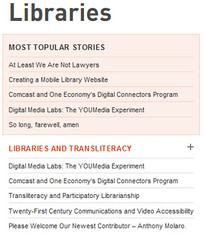
Alltop states that its purpose is to “help you answer the question, “What’s happening?” in “all the topics that interest you.”  Essentially, it aggregates websites, blogs, and other information sources for a given topic into individual webpages, such as Libraries. On any given topic page, you are presented with several information resources that  
Alltop has chosen to include on that topic. The latest 5 headlines for a given information resource are shown along with that headline’s first paragraph (through the use of a mouse-over.)  Topics can be accessed via an alphabetical list or search.

There are 5 tabs located near the top of the page that are constant:


Hot Topics is the default page that you see when you enter the site. These are topics from a wide spectrum of information sources. From what I can see, many of them are technology-related, but not exclusively. According to Alltop’s About page,

We use a patent-pending, semantic computational algorithm derived from the post-doctoral work of Guy at Stanford. Just kidding. We rely on several sources: results of Google searches, review of the sites’ and blogs’ content, researchers, and our “gut” plus the recommendations of the Twitter community, owners of the sites and blogs, and people who care enough to write to us. Let us declare something: The Twitter community has been the single biggest factor in the quality of Alltop. Without this group of mavens and connectors, Alltop would not be what it is today… If you’ve gotten the impression that Alltop is not based on computer algorithms or popular voting, you’d be right. We are highly subjective and judgmental.

To note, the above quote contains the answers to two different yet related FAQs, but I think it gives you a feel for how this site is set up.

New Topics lists the newest topics added to the long list of topics on Alltop.
My Recent Topics is like the History in your Internet browser; it is where you’ve been. 

Holy Kaw is really interesting as it is described as “all the topics that interest us" seems to be a place for the site’s producers to post a variety of interesting, quirky, fun, or offbeat items. The format of this page is a blog with links to the original information source.  Again, the items on this tab fit Alltop's claims of "highly subjective."

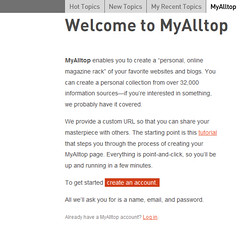
I've left the MyAlltop tab to discuss last as this is the tab that you can use to personalize your Alltop experience.  Setting up is as easy as picking a username, password, and a valid email address. 


The username becomes part of your personal url:  http://my.alltop.com/yourusername which you then can use to directly access your MyAlltop account. To add information sources to your MyAlltop page, either click on the letter of the alphabet to go to a topic page or do a search by entering a term or terms into the Search box. Once you've found the topic page you're interested in, adding one of the information sources is as easy as clicking on the green + located to the right of the title of the information source (a mouseover on the green + gives the message "add this feed to my.Alltop").

A tutorial is available for Alltop that is a very well-done short video located on the About page. This page is also full of information about Alltop, including information about how to submit information resources to Alltop.  If you are looking for an easy to use site for keeping up on a topic and don't mind that someone else has done the choosing for you, then Alltop may be for you.

 Michael Scott, Southeastern Libraries Cooperating


Image: 'Laptop, the well-travelled suitcase years'
http://www.flickr.com/photos/36778932@N00/2218440756

Saturday, October 2, 2010

Thing 66. Politcal Engagement in a Technical World: 2010 Midterm Election and More


Midterm elections are on the horizon! What time like the present to think about your own political engagement and how to get others involved in the political process? Times are a changin’ and through modern technologies, we all have the chance to be involved and informed at a greater level than ever before. This is an exciting prospect to some, but an exhausting idea to others.  With greater access to information, comes increased responsibility to carefully evaluate resources. So, how do we begin to manage and learn it all, and inform others? Decision day is coming up on Tuesday, November 2, 2010, so it’s time to get crackin’! 

Voting: What’s in it for me?
If you’re teaching young adults about voting and their civic duties, or trying to connect with a reluctant voter, you might appeal to them with thiscalled Voting and You! with Ed Helms and Chris Mintz-Plasse, the kid that played McLovin’ on SuperBad. It’s a silly 1950’s spoof, but does have a decent message.

But, I only vote every 4 years!
For a basic primer on midterm elections and why they’re important, try visiting CNN’s Election Center – The Basics.  This website is a great place to start if you need to introduce this topic in any venue, or to further your own understanding of why midterm elections matter. Go to the Why it Matters? section near the bottom of the page. Here you’ll get some clear information on the key issues this year.

The Issues and Candidates: National Coverage
After establishing a basic understanding of the importance of voting and midterm elections, now it’s time to really begin exploring the issues and the candidates. There is an incredible amount of information out there on the issues and the candidates, but we’ll focus on just a few here.
The Politics page within the larger New York Times site is a helpful site to begin digging into the issues – regardless of state. The site is designed nicely with a helpful toolbar on the left that allows you to choose from House, to Senate, to Governor races. In addition, the Politics page gathers the latest stories of interest and is constantly undergoing updates.

NPR Elections 2010 is another great site for accessing information easily and in a timely way. Though the page is “clean” and easy to navigate, there is a surprising amount of information available. Sections like the Message Machine, Scorecard, Heard on the Air, and Podcast + RSS Feeds may be of special interest.

The Cook Political Report is a helpful source for current election information. Site reviewers claim that it is a reliable and non-partisan source. The Current Outlook section is helpful for understanding the basics, whereas the Updates area contains daily articles of interest in the following areas: National, House, Senate, Governors. 

The Issues and the Candidates: Minnesota
The politics section of MinnPost.com covers all things great and small about the upcoming Minnesota election. Topics range from candidate comparisons to updates on voting procedures.

MPR has a very interactive and helpful politics section on their site. Not only are the latest news stories there, but also Select a Candidate, PoliGraph, and the Capitol View blog. Select a Candidate allows the user to find a candidate that is most closely aligned with their own political views. PoliGraph checks statements made by Minnesota political leaders to verify accuracy.

The Star Tribune covers the latest election news as well. They also include a countdown to election day.
The website for The Office of the Minnesota Secretary of State Mark Ritchie, contains a wide variety of crucial information for Minnesota voters. There is information about how and where to vote, who the candidates are, and how to get involved and play an active role on election day.

Of course, the candidate’s websites also contain a great deal of information.  If you’re looking to understand a candidate’s position, what better place to find the information than the candidate’s own site? Just be sure to carefully evaluate the information presented there. Nearly all candidate sites will contain some form of bias.

Let’s Get Interactive!
Try checking out your candidates on YouTube. YouTube has a campaign toolkit for the candidates called YouChoose 2010.  This indicates that many of our candidates are likely active on YouTube. Try searching for candidate names in YouTube, or try something like “Minnesota Governor Candidates 2010”. Get a good search going, and you’ll find lots of valuable information – in a palatable format!
The Minnesota Secretary of State site has a few informational videos available. The first is Voting in Minnesota: What You Can Expect. The second is Using the AutoMARK. Upper-level students and political junkies will have fun testing their political prowess with this quiz  from USA Today.
ALA has gathered together a bibliography of great politics and government sites for kids. Many are interactive and present important information in fun and innovative ways.

Check out interactive maps that are available online including Google’s 2010 U.S. Election Ratings and Wall Street Journal’s Congressional Contests maps

Call to Action!
Hopefully you can take this information and spread the word to your patrons about current politics, the importance of voting, and the upcoming midterm elections. There are many other sources of information out there, so take a look and maybe you’ll discover a new favorite source of information. Then, go ahead and share them in the comments area!

Kate Bessey, Information Specialist
Central MN Libraries Exchange (CMLE)
Image: VOTE

Thing 65. Web-Based Note Taking

Have you ever been hard at work, online, perhaps writing an article like this one – when wham! the best idea ever hits you! Or, maybe you’re researching a topic and need to take notes as you go along. Or, maybe you’re looking at your favorite blog, like the Things on a Stick News Archive, and come across some links to tools or sites that sound interesting, but you just don’t have time to look into them right now. 
The examples above provide some real-life situations that may inspire you to try an online note taking solution. Online note taking has become increasingly popular as we are connecting more and more with technology in our lives. With web-based note taking solutions, instead of having to scratch your thoughts down on a real sticky note, now you can neatly type your notes and refer back to them on your desktop, in any number of websites, accounts or apps, and on your smartphone.

Think about it, instead of scribbling down your thoughts on a piece of scratch paper and having to bring it with you, now your notes are always with you as long as you have access to the web. For most people, this will reduce the chance of a) forgetting to write the note, b) writing down something incoherent, and c) losing the note at the bottom of our purse or pocket –never to be seen again.

Like anything else in this digital world, the user has a lot of choices when it comes to picking the specific note taking software they’d like to use. If you do a search for “online note taking,” “web-based note taking” or “note taking apps," you’ll truly get an idea of how many different options are out there for online note taking. The selection is almost endless, so you may want to review this Mashable article to familiarize yourself with the top 20 note-taking solutions cited by Mashable.

One of the most popular and highly publicized online note-taking solutions is Evernote. Evernote has grown in popularity because it has the capability of “doing it all” and is a cross-platform, universal application. Some refer to Evernote as the kitchen sink approach, and rightly so!  A few key services provided by Evernote include:
  • Capturing and saving : notes, a webpage, a photo, a screenshot
  • Indexing for anything you’ve captured or saved
  • Easy organization of notes and tags
  • Search by keyword, title, or tag

The Evernote site also provides a few examples of really creative ways to utilize their service. For example, they suggest planning your entire vacation and saving all of your important information into a folder on Evernote. So, you can save your itinerary, tourist websites, plane tickets, important phone numbers, and receipts for expense reports. The whole shebang!  

Evernote also makes it easy to take and keep good notes. Say you’re in a business meeting. Not only do you have handouts to look at, but you probably have your own notes that you’re jotting down, along with maybe the notes of a co-worker that you’d like to review, and last (but not least) notes written by the speaker during a presentation on a white board or something similar. With Evernote, all of these notes can be saved in one place. You can take a picture of the whiteboard and upload it to the folder you’ve created in Evernote. You can also upload or take pictures of your handouts and your coworker’s notes. Lastly, you can record your own thoughts during the meeting right in Evernote. No need to use a separate sheet to record your thoughts! 

Additional services that are quite powerful, like Evernote, include Stixy, UbernoteZoho Notebook, corkboard, and Delicious. These services also have a “kitchen sink” approach. You can record notes, upload pictures and documents, share your content with others, track changes to your notes and documents, and enjoy universal access to the software – regardless of platform.

If you’re looking for a more “bare bones” note taking approach, there are other tools that may be of greater interest to you. For example, Jjot and Listhings  are basically online sticky note creators. You can write notes to yourself, similar to what you’d write on a sticky note, and then retrieve your notes later from any web connection. You can also send your “stickies” to your friends once you’ve set yourself up with a Jjot account. You can also print your notes! This could be especially handy for grocery lists or weekend to-do lists!

Let this information be a launching point to your own usage of online note taking tools. Try exploring a few of the tools mentioned above… Which is your favorite? Why? Would you recommend this note taking method to your friends, coworkers, and maybe even patrons?

Kate Bessey, Information Specialist
Central MN Libraries Exchange (CMLE)

Tuesday, August 31, 2010

Thing 64. Face-to-Face Social Networking for Libraries: Let’s Get Back to Basics

The Web 2.0 initiative for libraries is a good and positive thing. I’m no Luddite and I’m glad my library required staff to participate in creating blogs, using Facebook, Shelfari, Twitter, et al.  I don’t need to reiterate the reasons for the need of libraries to keep abreast of the multitude of technological changes showering (should I say weighing us?) down and using these apps to market and keep the library relevant. But, (you knew this was coming, right?) I think it’s time to get back to basics and refresh our face-to-face techniques in dealing with our users and promoting the use of the library.  In marketing, there is nothing more powerful than mouth-to-mouth promotion and in social interaction, nothing beats face-to-face.

Be responsive to user’s requests.
There is nothing more disenchanting to a patron than to make a request and be met with a blank or uncaring stare.  As they approach you, smile and greet them, by name if you possibly can. Get to know people’s names and use them. On your To Do list: find out and memorize five regular users of your library and the next time you see them greet them by name.  Wait for their smile. People love being remembered. 

Even if you can’t immediately help a person, show them you are listening to (and hearing) their request, and give them some sort of response, even if it is “I’m working with another patron, but I’ll be with you in just a moment.”  And then, most importantly, FOLLOW THROUGH.  Handle their request or pass it off to someone who can as quickly as possible.  Never underestimate the benefits of building a relationship of trust in your social interactions.

Be an ambassador for your library.
Just as the tech tools covered in previous issues help you to reach beyond your library's walls, your good, old-fashioned social networking techniques do, too.  Be involved in your community.  Let people know what is happening at the library, even when you’re not “on the job.”  Conversely, find out what people’s wants and needs are elsewhere, and brainstorm ways for your library to help meet those needs.  If possible, develop relationships with your local legislators – they are people, too, and they appreciate a smile and an offer of help as much as any one of your patrons!

Don’t forget the tools that got us here.
Tech toys and databases can be fun, useful and educational. They offer new twists on old methods, not to mention some entirely new methods and resources. There are still many, many tools of librarianship that brought us into the 21st century, and they aren’t obsolete yet. Learn your traditional resources. Don’t be afraid to leave your terminal or put down your handset and make your way over to the stacks. We constantly bemoan the fact that people are relying too much on Google or Wikipedia, but then we fall into similar, if not the same, traps ourselves. 

This is a brief essay with a brief, but important, message; we need to put the ‘social’ back into social networking.  Move out from behind your screen. Put away your tech toys until you need them. Make eye contact with your patrons and treat them as humans, not avatars. Use all of the tools at your disposal to give them the best service possible in each and every instance. Then you can step back and watch your library thrive.

Gena K. Zelenka, Blue Earth County Public Library
And
Dayle K. Zelenka, Traverse des Sioux Regional Library System/SMILE


Thing 63. Droid

I started my career as a systems librarian, so you would think I would be up on all the latest gadgets, but that hasn’t always been the case. Until I became an administrator, I didn’t really have a great need for constant mobile connectivity, so I lagged behind the times, remaining for the most part an outsider to the cellular revolution; but life moves on and things change, and I decided to jump in…with both feet. My new Droid X arrived last night.

Even before it arrived, thanks to the multi-week waiting period for a Droid X, I had plenty of time to think about how it might change my professional practices. Like any good librarian, I started researching some of the possibilities.  

My first question: How does it stack up to the competition? I found a nice mashup posted by the Lone Wolf Librarian. He states, “Going by the chart, there doesn’t appear to be much Droid is lacking – other than the 93,200 apps (100,000+ by recent estimates) that the iPhone’s app store offers. You also get Verizon’s network as opposed to AT&T.”

I moved on to looking at the ever-growing universe of Droid Apps to see which might be useful. I discovered many that will impact my personal life and information needs, but also found a few with some intriguing professional implications. One that immediately caught my eye was Barcode Scanner. This App uses your device’s camera to capture and scan barcodes. It then looks up prices, reviews – any associated information it can find in the Google universe. It can also be used to scan 2d or QR Codes – those malformed checkerboards which can contain URLs, contact info, calendar events, etc. I haven’t had much chance to play yet, but the new version even promises a bulk scanning mode. I also found many of the social networking tools featured in previous newsletters in App form; Facebook, MySpace, Twitter all have mobile versions

Next, I sought out Apps which met specific data or library needs. To start with, I limited myself to free options from the Droid Market. There are some nice mobile adaptations out there to give you data – quite literally – at your fingertips. FactBook, one of my longtime favorites for world and country data, has a nice clean interface and intuitive design. I found it just as easy to use as the desktop version. A blog post by David Rothman of davidrothman.net led me to PubMed Mobile. While it’s interface was a bit clumsier and less suited to the touchscreen environment of my Droid, it still allowed detailed searching of the free PubMed database.

Finally, I looked at uses which I’ve seen other mobile device owners using at my local public library.  One of the neatest I found (with the help of an article by the Librarian in Black) was the Overdrive Media Console for Android. Designed specifically for use with the OverDrive MP3 Audiobooks found in many libraries, it made their download and use easy even for a new user.  Other similar tools available include the Kindle, Nook and Aldiko eBook readers. These all offer free public domain texts, as well as access to their eBookstores. I haven’t tested yet, but I believe the latter two could be used in conjunction with many library eBook systems.

As the Android OS grows, I imagine we will see more and more apps coming onto the market. I also imagine that the innumerable creative and dedicated library professionals out there will continue to drive us towards creative and functional uses for these new tools.

Note that I am not promoting the Droid over other smartphones--this is my experience with that one phone. Based on that experience and my research, I think smartphones do have a place in both personal and professional productivity, as well as in library service.

Dayle K. Zelenka
Traverse des Siuox Regional Library System/SMILE

Wednesday, August 4, 2010

Thing 62. The Creative Librarian

Photos & videos are a great way to engage library users and the community in what happens at the library. You can document events like the summer reading program finale. Post photos or videos of  author talks. How about a "sneak peek" of what goes on behind that "Staff Only" door? A photo booth with fun backdrops might be a hit at a teen night at the library. A family portrait day (special guest or not) is fun.

It has never been easier to be creative with photos and video. Digital cameras make taking good quality pictures simple and inexpensive. No more taking the film to FotoMat & waiting a week only to find out you have a lot of blurry pics to store in that shoebox with the others. Digital cameras let us instantly evaluate the pictures, retake as necessary, upload the pictures online or to our computer, print them out, or store them online. In a flash, you're ready to show the world your events. Flip & similar pocket-size video cameras make documenting those action events at the library almost as easy.

Once you have a collection of digital images, there are many Web 2.0 tools that will help you manage and display them. Online tools let even the least artistic among us edit and display our photos and videos for the world to see. Think how you can use some of these tools to spark up your website or other resources. People like to see what's been going on.

iPhoto & Picasa can help you organize, label and rate images, view and edit metadata, and navigate using the folder structure of your computer. Web-based services like Picasa Web Album & Flickr offer easy ways to share your photos with others by storing them in the cloud.

Once you have your originals saved in a safe spot on your computer or online, you can play around with the photos and then upload the new versions while keeping the original for another project.

Picnik is a great (free & premium versions) tool that lets you improve the quality of your photo and add special effects like color changes, blur effects (we want those now!), frames, captions, and more. For videos, Macs come ready to edit with iMovie, while Windows machines offer Windows Movie Maker. Take advantage of this benefit to put together a few video clips or a full-length movie.

BigHugeLab and other sites like Dumpr and PhotoFunia let you put your photos into posters, puzzles, games, and more. Everyone wants to be on the cover of Rock Star!

Now that you have a set of cool photos or video--nicely edited to eliminate red eye, cropped to focus on the subject, and tarted up with text, frames, and effects, how do you share them? Save the new photos, print them out, and post them in the library. Or, for a more "modern" way to share, there are cool tools that help you easily create slideshows or animations of your photos or video. The tools generate the embed code, too, so you can easily post these to the library website or blog.

PictureTrail lets you upload your photos to create a "Flick"with many options for transitions, glitter, music, and more. Animoto automatically produces unique video pieces from your photos, video clips, and music. Both tools are fast, free and easy. Note that iPhoto and Picasa also offer a slideshows, but without the special effects.

Resources
Here are couple of places to look for help and ideas. The blog Free Technology for Teachers offers this Making Videos on the Web guide that is useful for media specialists and librarians. The ALA TechSource Take Pictures, Tell Stories is a multi-part series on photography for libraries.

The Fine Print
Librarians have been looking for legal/ethical guidance about taking and using photos in the library. Here are some sources to review, but be sure to check with the powers that be in your organization to avoid issues with posting photos or videos. Whatever the decision on photography, be sure to have a policy.
Libraries are creative places, packed with creative people. How have you used photos or videos to promote the library? What tools did you use?

Ann Walker Smalley, Metronet

Image: 'Kodak Brownie Starlet, 1957 - my first+camera'
http://www.flickr.com/photos/89142790@N00/2345575389