Monday, April 5, 2010

Thing 54. Hyperlocal Sites

In this thing, we’re exploring the not-so-new idea known now as hyperlocal websites. “Not-so-new” in the sense that what many of these sites are doing is providing that local (town, city, neighborhood, or even block) information source that many small town daily or weekly newspapers have always provided. As many of these newspapers are beginning to disappear and larger newspapers are dropping most local coverage, this type of local news coverage is moving to the web. The field of companies offering this service is growing and have become desirable to some larger media companies such as MSNBC, AOL, and so on. To give you a sense of the variety of sites out there, let’s take a look at a couple of sites: EveryBlock and Patch.

EveryBlock, owned by msnbc www.msnbc.com, takes a granular approach to reporting local news. Rather than just reporting news for entire city, say New York City, they offer news feeds for every block in 16 cities, which as of today includes:
By entering a street address or neighborhood name, you can find news coverage, public records, and other content that is either from that area or in the same geographic area.  EveryBlock states that it is trying to answer the question, “What’s happening in my neighborhood?” The company does the gathering of this information and presents it to the end user. EveryBlock focuses on four categories of local news:
  • Civic information – defined as public records information, including permits, crimes, restaurant inspections, etc. EveryBlock has established relationships with local governments to make this information more readily available.
  • News articles and blog entries – defined as information from major newspapers, local TV and radio, community weeklies, local blogs, and other local publications. EveryBlock then does the work of geographically classifying these articles.
  • Fun – defined as coming from diverse places on the web, such as Flickr www.flickr.com, Yelp www.yelp.com, Craigslist www.craigslist.org and so on.
  • Announcements – defined as news, classifieds, and upcoming events. This category even allows for the posting of announcements.
Creating an EveryBlock account
Each EveryBlock site allows users to register for “extra features.” To register, go to any of the 16 sites and click on Register in the upper right corner and follow these steps:


  1. Type in your email address. A message will be sent to your email to verify that the email address you entered was indeed valid.  Click on the link in your email and go to step
  2. Set a password. Type in a password for your account (retype it for security purposes) and Voila! You’ve created an account.
Once you’ve created an account, you can set your preferences to what types of information you want to see on your page, what neighborhood(s) you’d like to be emailed about or would like to have set up as a saved place, and post announcements, alerts, etc. There is also an iPhone app that can be downloaded as well so that you can take your news on the go.
    Patch www.patch.com is a site that really does seem to take that small-town newspaper idea and run with it. Rather than focusing on a block or neighborhood in a city like EveryBlock, Patch focuses on an entire small town or city. Currently, Patch has cities in 5 states (California, Connecticut, Massachusetts, New Jersey, and New York) and as of today, 44 towns and cities. 

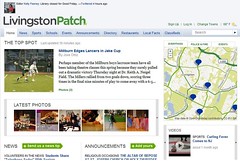
    Each page has the same basic layout, which includes sections such as news, announcements, events, and a section called essential which includes things like videos, calls for volunteers, and listings for local organizations. Here is an example of a Patch site for Livingston, NJ.

    Other sites of hyperlocal sites of interest:
    Will we soon rely on these hyperlocal sites to get all our news and information? Time will tell!

    By Michael Scott, Assistant Director, SELCO/SELS
    Newspaper Image: A Stack of Newspapers. DRB62 Photostream

    Thing 53. Location-Based Social Networks


    One of the newest and hottest 2.0 technologies is location-based social networks. These technologies use GPS to broadcast your location and/or other content from your mobile device, known as "checking in." Most of these services are free and available for a variety of mobile devices, including the iPhone, Blackberry, and Android. So let's dive in and take a look at two of the many networks out there: foursquare and brightkite.

    foursquare is one of the most popular of the location-based social networks. As it describes itself, “foursquare is a cross between a friend-finder, a social city-guide, and a game that rewards you for doing interesting things.” Foursquare can be used anywhere in the world and while it doesn’t have every city or location, it does give you the option to add a location.

    Setting up a foursquare account

    To begin, click on the Join Now button. You will be asked to fill in just a brief amount of information, including your name, location (i.e. a city & state), and your email address. Some information is optional (such as your phone number) but most of the information is required. You have the option of also adding a photo, much like Twitter and Facebook. By the way, you can link your foursquare account to both of these social networking technologies as well. And, just like Twitter and Facebook, you can search for your friends and add them into your foursquare so they can be notified when you and where you are checking-in. The key thing to know about foursquare is that it is currently available only on your mobile device; check-in can’t be done from the foursquare website (with the exception of using their mobile website http://foursquare.com/mobile/ which is obviously built for a mobile phone.) There are apps available for the following phones:
    • iPhone
    • Blackberry
    • Android
    • Palm Pre
    There is a mobile website available as well if you don’t have one of the listed phones or you can send a text to 50500. Text or SMS check-ins are only available in the U.S.

    Checking-in, earning points and badges, and “The Mayor”
    Telling foursquare where you are is known as “checking-in.” When you check-in on foursquare, the program notifies your friends. Even if you don’t have a smartphone, you can check in like this: 
    @ SELCO ! Attending CE course

    Once you check-in, you will earn points:
    • 5 points for your first time checking-in at a venue
    • 5 points for adding a new venue
    • 1 point per check-in, increasing by 1 point with each check-in (i.e. first check-in of the day is 1, second check-in of the day is 2 points, etc.)
    Right now, only points are accumulated. foursquare is still experimenting with what the points translate into. They would like to know if you have ideas about the points.

    When checking-in, you have the options of adding a “tip” and “to-dos.” A tip is something that you want to share with your friends about a place. It might be as simple as recommending an item from a restaurants menu to letting them know about an especially helpful staff member at a store. In turn, you’ll be able to see what tips your friends have left for a location when you check-in. To-dos are little notes you leave for yourself at a location, like maybe trying another menu item or where something might be located within in store.

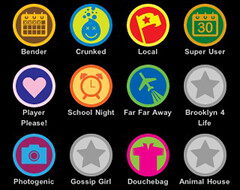
     And, just like other Web 2.0 applications, you have the option to “tag” a venue. Tags can be anything and become important in earning badges. “Badges” are extra rewards that you can earn when you check-in at an interesting place and are tied to venue tags. Essentially, adding a tag to your favorite place can help unlock badges. 

    To become Mayor of a location, two things are required. One, you must have a photo on your foursquare profile. Two, you have to have visited a location more than anyone else. The state of being “mayor” can be short-lived especially with a large number of friends. But, unlike the points and badges, being mayor MAY actually get you some free stuff. Many businesses have tapped into foursquare and will offer“mayor” things like free drinks, hotel stays, ice cream, you name it. Think of this like those loyalty rewards cards you get from gas stations or grocery stores.

    Brightkite  says this about itself: “Brightkite is a simple way to keep up with friends and places. We created a product that lets you instantly see what's going on with the people who matter most to you, your friends. So check out what they're up to, meet new friends along the way and get out and enjoy your neighborhoods.”

    The application can be accessed several ways:
    Setting up a Brightkite account 
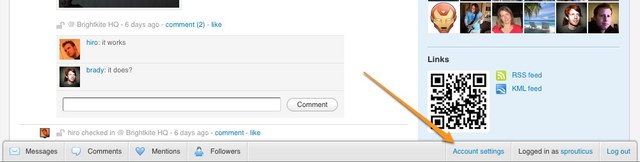
    Just as with foursquare, there is a large button right on the front page of the website that allows you to set up an account, including the ability to connect with Facebook. Sign up is as easy as your email address, picking a username and password, and answering a simple verification question. Before you can really proceed, you will need to verify your email address via the email message the application sends you. Once this is done, you can add more information about yourself by clicking on Account settings. Note that this is at the very bottom of the screen on a special taskbar that is very small. 


    Checking in and Posting
    If you’ve used Twitter, you can use Brightkite. In fact, if you check-in and post on the website, your Brightkite page looks an awful lot like your Twitter page, including using a very similar layout. You can set this page of post to show only your posts, your friends posts, or everybody’s posts; limit the area you’d like to see post from (from 20 m to 100 km or everywhere); and limit to either check-ins, posts, photos, or any combination of the three.

    To check-in on the web, click on the Check In button:


    To post notes and photos on the web, first click on Post:


    Then, click either begin typing in your post or click on the photo button to post a photo:


    By the way, to check in via text message, use the convention:

    @ SELCO ! Attending CE course

    You can also easily share your posts, check-ins, etc. on Twitter and Facebook.

    It doesn’t seem that there are any badges or points to earn in Brightkite, just the ability to connect with your friends and others.

    Brightkite Support
    Brightkite does have an extensive knowledge base of frequently asked questions. This is the best place to start in setting up and using your Brightkite account. For a great example from their support page, click here to see how to check-in and post a note or a photo at the same time.

    Kiteups
    A kiteup is simply a meetup of Brightkite users, thus making this application more than just a virtual social network. If given a few weeks notice, Brightkite can provide its users with a public placemark for the event and a special “kiteup” kit with goodies that you can give away to your attendees. For complete instructions of how to set up a kiteup, click here.

    The “Creepy” Factor
    OK, so if you are getting that uneasy feeling about these applications, i.e. the “creepy” factor, don’t worry, you’re in good company. Basically, the words of advice that folks have are that if you are feeling creeped out by revealing where you are, just don’t do it. However, here’s what according to Aliza Sherman, host of site The Digital Marketer:
    Yeah, location-based social networks are a little creepy. I mean you're basically checking in when you arrive someplace to let your network contacts or the public at large know where you are and what you're doing. So if you're creeped out about revealing your location, maybe you shouldn't do it. But don't let that turn you away. You may be surprised by what these networks can do for you.
    For her full article, click here.

    For another interesting article on the subject, check out Sarah Perez’s article on ReadWriteWeb Location-Based Social Networks: Delightful, Dangerous or Somewhere in Between?

    Other location-based social networks:
    It's up to you whether or not you want to have these location-based sites let others know where you are. Interest and activity on the sites tends to be friend-related--if your friends play the games, you are more likely to play along. Let us know what you think in the comments!

    By Michael Scott, Assistant Director, SELCO/SELS

    Friday, February 26, 2010

    Thing 52. Putting It All Together: Building & Sharing Your iGoogle Page

    iGoogle or other personal start pages are great for managing your PLN, but they can further enhance your productivity by aggregating many other parts of your life, too. You can organize gadgets and feeds into tabs or pages on iGoogle by theme or topic. 

    Using tabs turns iGoogle into a personal web site, with multiple pages for your interests. You can have a main page with all your productivity and communication gadgets--calendar, email, to-do list, Google Reader or Bloglines, Twitter, Facebook, etc.-- and then other tabs for other parts of your life. So, all your library-related feeds and gadgets can be in one tab or page, while your hobby-or home-related items are on another. Technology can have its own page, and so on.

    You know that your iGoogle homepage is visible only to you when you are signed into your Google account, but did you you know that you can share the individual tabs you create on iGoogle? Organizing iGoogle with tabs by topic makes it possible to share all or only part of your iGooge site. By creating a PLN tab or page, you can share it with your colleagues or others. 

    Creating Tabs in iGoogle
    To create a tab or page in iGoogle, click the arrow next to Home in the left sidebar to get the drop down menu. Then click Add a tab. This box pops up:
    Name the tab. If you are feeling lucky, you can let Google add stuff to the page, but you probably want to uncheck that box so you can choose what to add yourself. Once the tab is created, go to Add Stuff and start adding! You can customize the theme of each tab, just as you do on the home page, so each tab or page has a distinctive look. 


    Create tabs as you need them for organizing or sharing. All your tabs will be in a list in the order created in the sidebar below the Home tab.


    Sharing Tabs in iGoogle
    Once you have your tab(s) the way you want them--full of great gadgets and feeds--you can share them with others. In the sidebar, click the arrow next to the tab you want to share in the left sidebar. Then click Share this tab.This box will pop up:

    You can uncheck the box next to anything you don't want to share. Fill in the email addresses of those you want to receive your Tab, add a message, and click Send. Couldn't be easier to share all the great "stuff" you've found.

    So now that you understand the basics of setting up, organizing, and maybe sharing parts of  your iGoogle page, it is time to think about what else belongs either on the front view of your page or behind some of those newly created tabs. 

    What Should I Add?
    Thing 51 showed you how to find gadgets and feeds by searching the Add Stuff pages, but since there are thousands upon thousands of gadgets, here are some ways to narrow your search and a few recommendations for cool gadgets. 

    To view and add the newest gadgets to your page, click on Newest under Sort by on the Add Stuff page. If these gadgets aren’t your speed, try clicking on Hottest or Editor’s Picks

    Recommendations 
    Google News is becoming a favorite customizable, news-source aggregator. This gadget is helpful because it is fully customizable and all news sections appear in separate categorized tabs. You can specify national, state, and local news. Users can simply click on the tab that interests them to get set up. In your initial set-up of Google News, you have the option to add only the topics that interest you. You can click on a + sign to indicate which subjects or topics you’d like to add to your Google News page. This allows you to manage the flow of your news sources from the get-go. For a recent Minnesota event, Buffy Hamilton (The Unquiet Librarian) put together a helpful libguide titled, Harness the Power of Google News
      • How about a book gadget! Some favorite gadgets for book lovers include: My Google Book Search Library, Book of the Day from Google Book Search, NPR Topics: Books, London Review of Books and The New York Review of Books. For others, search for book, literature, or another term of your choice for more.
      • A search for library returns a wide range of feeds and gadgets, including gadgets for catalog searches (WorldCat or Hennepin County Library, for example) or the Librarian's eLibrary, a custom Google search for resources from the American Library Association. 
      • Search iGoogle Showcase to track down the iGoogle pages of celebrities and modern thinkers. It may surprise you! You may also get ideas for some fun or professional gadgets to add to your own page. 
      • Add a gadget for your favorite websites. Simply track down a few favorite websites and their URLs. Then in your iGoogle page, click on Add stuff. Next, click Add feed or gadget. Copy and paste the URL in the provided space, and click Add. If the website allows feeds and updates it will go through without a hitch and will be added to your iGoogle page. If you select a website that does not allow automatic updates or feeds, you’ll get a message stating that it cannot be found. At that point, try looking for the site’s RSS feed instead. 
      • To-Do gadgets are great! Go to Add stuff. Search for To Do and choose from the list. Once you’ve selected the one you prefer, add it to your iGoogle page. Now you have a place to store all of the “to-do” items that you normally would have put on post-its or in a scheduler. This also will bring you back to your iGoogle page often–which is a good thing if new feeds are consistently being updated on your page.
      • A Facebook for iGoogle gadget is also pretty handy. A few users have complained of errors here and there, so it may be a bit fussy. Work with it for a while and see how it goes. You can always make adjustments to your settings or preferences. 
      • There are gadgets to add your Twitter feed to your iGoogle page, too.
        There are new gadgets rolling out every day! We’ve only scratched the surface of possibilities. Be sure to check out others at your leisure. They’re all available by clicking on Add stuff and then selecting Gadgets.

        Staying Current with Google
        There is no doubt that by the time this newsletter goes live, there will be new Google news. At the moment, most everyone is wondering when Google Caffeine will become available and whether they will like the new way that Google search results are served up. The recent rage (and controversy) is all about Google Buzz. Released 2/10/10 in its beta form, Google Buzz is available directly through Gmail. Here’s a short video from Google, introducing users to this new social networking tool. 


        How to keep up? The Official Google Blog will help you stay current with all things Google!  Add it as a favorite RSS feed to your iGoogle page and you won’t miss a beat!  

        Don’t be afraid to help your boss, administrator, or students in setting up an iGoogle page. They will think you are a genius. A customized homepage allows you to feel in control of the amount, types, and flow of interesting information. 


        Your PLN and customized homepage allow you to learn and explore at your own pace; it’s anywhere, anytime learning. Even in tough economic times, we can keep adding to our own personal learning!

        Google Mobile Apps 

        Here is a final challenge…set up your phone with your Google applications. You will see iGoogle, Google Reader, Google Calendar, and Google Docs among an uber list of other great possibilities. Go here for more info. Now, you are productive on the go, too!

        Did we miss your favorite gadget? Got another favorite customized home page tool you want to rave about? Post your favorites or other iGoogle reflections in the comments area below.


        by Kate Bessey & Patricia Post, CMLE
        Ann Walker Smalley, Metronet
        Image Credit: Don Solo

        Thursday, February 25, 2010

        Thing 51. It's An Avalanche! Managing Your PLN via a Customizable Homepage

        As all of this information comes at us through our PLNs, how can we organize it so that we can avoid becoming buried? And, how can we actually boost our productivity? As mentioned in Thing 28, many professionals now set up a custom homepage (or a personalized profile/start page) where they can access all of their accounts, social networks, information feeds, and contacts in one central location. My Yahoo!, Pageflakes, NetVibes, Webwag, Protopage, & iGoogle are some of the leading customizable homepages.

        Each of these customizable homepages has something unique to offer.  For example, iGoogle is praised for its ease of integration and no-frills usability, whereas PageFlakes is noted for its appearance and functionality.  Due to the sheer popularity of iGoogle, it has emerged as the front-runner of customizable homepages.  If you already have an iGoogle page, you may be surprised at some of the new possibilities for your page. For both iGoogle newcomers and long-time iGoogle users, read on for the latest on iGoogle.  

        iGoogle
        If you already have Gmail or another type of Google account, you can easily start your iGoogle page using the same log-in information that you use for your other Google account(s). Conveniently, iGoogle will effortlessly link-up the Google services you already use!

        If you don’t have an iGoogle account, you can get started here. This video details the process behind setting up an iGoogle account.


        If you need a bit of an iGoogle brush-up, here’s a quick video called iGoogle: a Mini Product Tour that should bring you up to speed. 


        If you’d like iGoogle to be your browser’s default homepage (recommended), access this link for more information.

        Once you’ve created your essential iGoogle account information, you can now start customizing iGoogle to your specific needs and preferences. Many new iGoogle users start with choosing a theme for their iGoogle page. Remember, this is your start page, and you want it to be something you enjoy viewing! Whether you choose birds, swirls, your favorite model or actor, polka dots, or something else is really up to you. Google has even made Artist Themes available; this video shows off a few popular ones. 

        You’ll also want to start adding specific applications and gadgets to your page. Gadgets are defined by PCMag Encyclopedia as “mini application[s] that reside on a computer desktop or personal home page, typically found in the Windows environment. Gadgets provide a myriad of functions, including customized news and stock quotes, calendar, dictionary lookups, cartoons and games.” Here is a brief overview of how to add and edit gadgets on your page.


        RSS Feeds and Your iGoogle Page
        One great feature of iGoogle is its ability to allow you to add RSS feeds directly to your iGoogle page.  Having a hard time remembering what RSS feeds are?  Refer back to Thing 3 from the original 23 Things on a Stick Program.

        Are you in a bit of a rut with your current RSS feeds? Consider looking around for something new.
        •    Do a blog search in Google. This search will limit search results to bloggers talking about what you are interested in.
        •    Use the Bloglines search tool. Use the Search for Feeds option in the pull-down menu to locate interesting RSS feeds.
        •    Look at LibDex for library blogs worldwide.

        You can view your RSS feeds two ways on your iGoogle page, so take a minute to think through the options. You can have the feed go directly onto your iGoogle page, or manage the feed inside of your Google Reader. Either way, when you open your iGoogle page, your feeds will be there waiting for you!

        To view an RSS feed directly on your iGoogle page without clicking into any gadget, follow these instructions. This is a good option if you want to pounce on new posts of a few select feeds. So, be careful to only add your favorites, and know that you can always edit how you set things up. Do this:
        1.    Navigate to the blog or website you are targeting for a feed.
        2.    New tab, login to your iGoogle page.
        3.    Click on Add stuff towards the top right side of the screen.
        4.    Click on Add feed or gadget, located underneath the Narrow by category column.
        5.    Insert the RSS feed URL of your choice (from step 1 above).
        6.    Click Add.
        7.    The RSS feed should now be added directly to your iGoogle page.
        8.    Click on Add stuff to start the process again.

        Now, for the second possibility! The power of using Google Reader is in its ability to compile and organize all of your RSS feeds, and hold them together for when you have time to go to one place to get caught up on what’s new. No more navigating to site after site looking for news, let this tool do the work for you. For a refresher on Google Reader, skip on back to the original 23 Things program and read the section on Google Reader. If reading isn’t your best way to learn, check out this handy video. 


        Extra tip…We love the new Google Toolbar!  
        It makes it even EASIER for you to add RSS Feeds to your iGoogle page or Google Reader account.  *You may want to get permission to install the toolbar from an administrator or from technical support at your library.*  Once the toolbar is installed, if you’re visiting a site with an RSS Feed icon, simply click on the button and a prompt will appear asking if you want to add the RSS Feed to your iGoogle homepage or to your Google Reader page.  So simple! 

        The time investment to set up or fine tune your Reader will be a huge productivity booster, we promise! And, you will be able to demonstrate that you are current and up to date on what’s new in library land.

        As time goes on, you’ll be surprised at how your PLN grows and connects you to a larger world of people interested in things that interest you, too! Your expertise in setting up and monitoring your RSS feeds is one of your greatest tools for awareness and professional/ personal growth. Getting them in one place will make it even easier to keep up. Thing 52 shows how to use iGoogle tabs to organize your PLN--and other parts of your life.


        By Kate Bessey & Patricia Post, CMLE
        Gourd Avalanche by: Benoît Derrier

        Tuesday, February 23, 2010

        Thing 50. Personal Learning Networks (PLN)

        Twitter, RSS Feeds, email, web conferencing, social networking… Oh my! Developing and maintaining professional connections through a personal learning network in our fast-paced, virtual world may often seem like a daunting task! The key is to focus on the role these and other Web 2.0 tools can play in our professional lives. Instead of having to rely solely on face-to-face communication, telephone calls or conferences, it’s now possible to meet and discuss professional topics with our colleagues from the (relative) comfort of our desks! When it comes down to it, in many ways we can actually SAVE time and money by conducting the majority of our professional development interests online. So, let’s hunker down and focus on what we mean by a “Personal Learning Network” (PLN).

        What are PLNs?
        A Personal Learning Network or PLN can be defined as a collection of resources (whether human or virtual) that provide learning and developmental opportunities. In the past, Personal Learning Network typically referred to the people, goals, and connections that made learning a possibility. Take a look at David Warlick’s article on the beginning of Personal Learning Networks and the Stephen Downes blog post “Origins of the Term ‘Personal Learning Network". Buffy Hamilton has created a great video highlighing the professional use of PLNs by librarians across the country.


        Increasingly, the focus for PLNs is harnessing the power of Web 2.0 tools. With tools like RSS, Nings, & Twitter, our PLNs are expanding beyond immediate personal interactions to encompass the communities of library and technology people online. We can connect and converse with friends and colleagues from around the world with a click of the mouse. It’s really amazing when you think about the possibilities!

        With this increased accessibility and communication, the key is … keeping the information we create, send, and receive current, accurate, and useful. Of course, what’s important to one person can be meaningless to another. So, it’s really up to you to determine who you will “invite” into your PLN. It’s yours, so take it and run with it!

        Developing your PLN
        Regardless of how long you’ve been working in libraries, it’s safe to say that there’s always something new to learn. Every day there’s a new tool, gadget, widget, feed, etc. being released. Admittedly, some have the same basic function or purpose, while others are entirely new and unique. So, the question remains, how will you keep yourself informed and on top of new trends?

        I bet many of you may be thinking “With my PLN!” Remember, a PLN can consist of both face-to-face interactions, as well as through online communication. We have to be actively engaged in both, and allow them to feed off each other. For example, perhaps our colleague down the hall is an expert in creating and hosting webinars; so, we should absolutely look to them for guidance when we’re creating a webinar of our own. With our current budget woes, going to face-to-face workshops is often not possible. However, it’s still important to keep learning and to produce our best work possible. By digging a little deeper, and doing our research, we will uncover scads of information in addition to our co-worker’s guidance and expertise.

        So, if we have some face-to-face connections already developed, what are some online communications that we can include in our PLN? Start by thinking about the Web 2.0 tools you’re already using. Nings, wikis, blogs, podcasts, RSS Feeds, Voice Thread, video/web streaming, Flickr, Twitter—these are all social networking tools that allow for sharing, networking, and collaboration between friends and colleagues. If you’re already using them, they’re already a part of your PLN. How convenient is that?! Next, think about tools that you haven’t used or those you wouldn’t initially consider as part of your PLN. A social bookmarking site, like Delicious, is a great example. While traditionally Delicious isn’t used to converse with people, you CAN use it to explore a mentor or colleague’s bookmarks. This would be a convenient way of identifying new and useful websites to explore.

        If you want to expand your PLN, here are some places to start:
        There are hundreds more. Be warned; it is easy, as you know, to be overwhelmed with information!

        Can you identify your PLN? Try thinking about all of the key players in your PLN; it’s amazing, isn’t it?! Do you find that the key players in your PLN are online? If so, you’re in luck!! Thing 51 is all about organizing our online influences. 

        Do you have an online resource you want to tell the world about (or at least your librarian colleagues)? List them in the comments area below!

        By Kate Bessey & Patricia Post, CMLE
        Image Credit: Cobannon

        Friday, January 29, 2010

        Thing 49. TweetDeck: Manage Twitter, Facebook, MySpace & LinkedIn Together

        So you've signed up for Twitter and now the tweets are coming in fast and furious, people are mentioning you, you're getting direct messages, people are retweeting you, and maybe you even decided to have multiple accounts, a personal one and one professionally or for your business. Are you overwhelmed with how to follow it all? We have just the tool for you!


        TweetDeck is free software you can download that will connect you to your Twitter, Facebook, MySpace, and LinkedIn accounts, all in one location. You can organize things from those accounts in different columns and you can even update your statuses in those accounts from TweetDeck.

        TweetDeck also gives you the opportunity to monitor more than one Twitter account at a time. If you have a personal Twitter account and one for your business or group, save time and monitor them both through TweetDeck so you don't have to log in and out every time you access them on the web.

        Get TweetDeck
        Go to TweetDeck to download it and you will also be prompted to download Adobe Air if you do not already have it on your computer. You need Adobe Air for TweetDeck to work, so make sure to download it, too.

        TweetDeck Beginnings
        When you open TweetDeck you will be asked to log in. The first time you log into TweetDeck on a computer you need to set up your TweetDeck account, so below the username and password boxes, look for the sentence that reads: "If this is the first time you've used TweetDeck on this computer, click here," and follow those directions to log in.

        The first time you use TweetDeck it will also prompt you to add your Twitter account. You can also add Facebook, MySpace, LinkedIn, and additional Twitter accounts, too, by going to the Accounts tab in your Settings. The Settings button is on the top right-hand corner of TweetDeck, next to these other buttons you may need:

        Buttons, from left to right:
        1) Refresh
        2) One column - makes TweetDeck smaller so you scroll left to right to see all columns
        3) Settings
        4) TweetDeck Support - brings you to the TweetDeck Support website
        5) Log out
        Another thing you'll probably want to do in your Settings is to turn off notifications and sounds. In TweetDeck you can have a box pop up every time something new is added to the columns you make (see more about columns below) and there is also a sound that can play to notify you of anything new. I disabled both of these things, and to do that just go to the Notifications tab in your Settings. There you can stop the notifications from popping up and you can turn the sound down to zero.

        TweetDeck Columns
        Once you're logged into TweetDeck it will look similar to this:

        All the columns in TweetDeck are for something different in each of your accounts. You can have columns for friend updates in Twitter, status updates in Facebook, mentions in Twitter, or even for photo uploads in Facebook. Here are some tips in using TweetDeck columns:
        • To add columns, click on the plus symbol on the top left-hand corner of TweetDeck.
        • Multiple columns can be added for each account.
        • There is no limit on the amount of columns you can add.
        • To delete a column, move your mouse over the Twitter symbol or the Facebook symbol at the top of the column and you will see an X appear. Click the X to delete the column.
        Updating Statuses
        In TweetDeck you can update statuses in any of your accounts, like a new post in Twitter or your status update in Facebook. If you want the same text to be updated in multiple accounts, it's very easy to do. Here are some tips for updating your status:

        • To update your status, click on the yellow compose button on the top left-hand side of TweetDeck.
        • Choose which accounts you want to update with that status by clicking on their names.
        • Type your status and hit enter. Your status will be updated in the accounts you selected.
        More TweetDeck
        There are many additional things you can do in TweetDeck, so for more tips, check out some of these websites:
        • TweetDeck basics - This is a fabulous blog post about the basics of TweetDeck. Two videos are embedded in the blog, and I highly recommend watching them for step-by-step basics help, including different settings you may want to do, how to add and delete columns, and how to update your status.
        • TweetDeck Support page - TweetDeck's support forum where TweetDeck and users respond to questions
        • Unofficial TweetDeck forums - TweetDeck users answer forum questions
        Mobile TweetDeck
        If you use an iPhone or iTouch, TweetDeck can also be mobile. Check out all the information on how to get the TweetDeck app on the TweetDeck iPhone page.

        Other Tools Like TweetDeck
        TweetDeck isn't the only tool you can use to better manage Twitter and other accounts. Here's a list of some other tools you may want to check out:
        If you really want to get into Twitter, the blog Big is the New Small has a list of Twitter tools & apps organized into handy lists: information gathering, network building & management, business & finance, Twitter management, sharing tools, health, organization & productivity, life tools, & blogging.

        So, dig in & explore. Who knows? You may be the next star in the Twitterverse!
          By LeAnn Suchy, Metronet

            Wednesday, January 27, 2010

            Thing 48. Twitter: Not Just for Breakfast Anymore

            You’ve heard about Twitter, you’ve seen Twitter, and you’re either on the Twitter bandwagon or you’ve dismissed it. There seems to be no middle ground when it comes to those who love and hate Twitter, but since 23 Things on a Stick and More Things on a Stick, Twitter use has exploded. Professionals and businesses are tweeting, news is updated instantly on Twitter, celebrities connect with fans via Twitter, and almost any interest you have can be nourished with a variety of Twitter feeds. 

            Twitter can be a great professional development tool for you, so if you’re one of the people who dismissed Twitter because you heard it’s about people telling you what they had for breakfast, open your eyes to some of the ways Twitter is being used:

            Library professionals are on Twitter

            Twitter can be a social platform, but it can also be a professional one. Librarians are tweeting about programming, articles, books, events, lesson plans, and a host of other library-related topics. For lists of professionals to follow, check out: Libraries on Twitter, Librarians Twitter Directory, 100 Best Twitter Feeds for Librarians of the Future, and the list of librarians in the 23 Things on a Stick Ning who are in Twitter.

            Follow businesses of interest
            If you frequent certain businesses, chances are they have a Twitter feed. Do you use Ning social networks? Follow Ning to get status updates. Whole Foods tweets about happenings in their stores. Southwest tweets about flight updates and deals. If you use a lot of Google tools, follow them for update information. Or maybe it’s local businesses you want to follow, so get great coupons by following Punch Pizza in the Twin Cities. Use the Twitter account search to your advantage and find businesses of interest to you.

            Get news updates
            News is updated instantly on Twitter as you may have heard about during the Iranian elections. During the elections individuals in Twitter were posting news updates, but there are also news organizations doing the same thing, like Minnesota Public Radio, The New York Times, and American Libraries. Other organizations like The Huffington Post, ESPN, People Magazine, and The Onion have Twitter accounts, too. Check out this list of 100 Best Twitter Feeds for All Your News and Know How.

            Follow government feeds
            You may have heard about members of congress tweeting, some even getting in a little bit of trouble for what they tweet, and even a candidate running for Minnesota state senate had some problems, but there are some good government feeds to follow. The White House Twitter feed put together a list of different government agencies tweeting, like The Library of Congress, the Department of Education, and NASA. You can even follow certain NASA astronauts, like T.J. Creamer who recently posted the first tweet from space. 

            There are government feeds about certain things, too, like the Food and Drug Administration feed for food recalls or Flu.gov’s feed highlighting flu information. And, if you are interested in following members of congress, here’s a list of tweeting members, including our own Michele Bachmann and Keith Ellison.

            Local and state governments use Twitter, too. In the Twin Cities, St. Paul Public Works updates its Twitter feed with snow emergency information. Other jurisdictions also use Twitter, so check with your local government. Weather woes lately make following MNDot a good idea!

            Find book-related information
            We librarians are book lovers, so find out more about books through Twitter. Follow publishers, like Random House, Dark Horse Comics, Milkweed Editions, and Graywolf Press. Follow those writing about the book industry, like Publishers Weekly or The Library Journal. Maybe you need more book reviews, so try New York Times Books, LA Times Books, Just One More Book, and local reviewers like Minnesota Reads. Authors post interesting tweets, too, like Neil Gaiman, Meg Cabot, Chuck Palahniuk, and Kate Jacobs. Even book characters tweet! For more book-related tweets, look at the Directory of Book Trade People on Twitter and 100 Best Authors on Twitter.

            Take time for some laughs, too
            We do want you to think about using Twitter for professional development, but you should also take some time to laugh, right? These are some of our favorite, funny Twitter feeds: the whale on the ceiling of the Natural History Museum in New York City tweets; Fake AP Stylebook is priceless for any librarian who helps students with citations; Ben Franklin is tweeting through a 13-year-old Minnesota Historical Society volunteer; even Laura Ingalls Wilder is tweeting.

            We could go on and on and tell you about all the great people and organizations you can follow in Twitter, but why don’t you try searching for that which interests you. Just login to Twitter and click on the “Find People” link at the top and search for someone or something. Check out who your favorite Twitterers are following to get even more ideas for useful feeds. You might be pleasantly surprised at who or what you find. After all, even the Pope is promoting Twitter.

            Do you follow anyone we should follow? Let us know in the comments.

            By LeAnn Suchy, Metronet